
Choosing a new phone system? Read our page on phone systems for small business, or get a quote.
VoIP for remote workers lets staff use the business phone system from home through a softphone or a desk phone with an internet connection. They can keep the same extension and transfer calls through the system. Start by choosing the right device for each person, then set the call rules and test the home connection.
Choose the phone for the job
A softphone is a phone app on a computer or mobile. It suits someone who moves between home and the office, or who would rather answer through a device they already use. A browser option can also provide calling without installing an app.
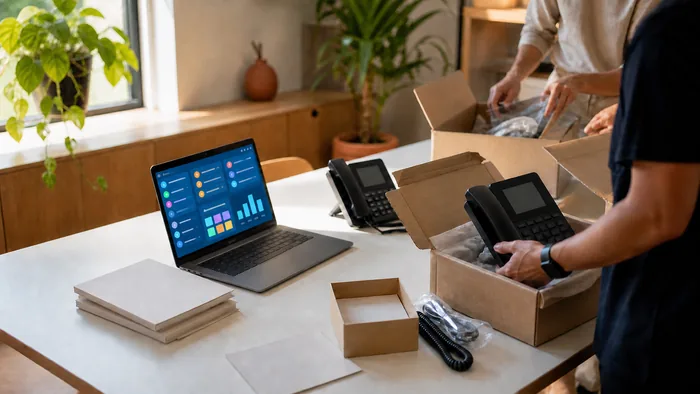
A desk phone at home can suit someone who spends much of the day answering calls at a fixed desk. It gives that person a separate phone rather than making the laptop do every job. The handset needs a suitable network connection and power, just as it does in an office.
You can mix the two. The important point is that both connect to the business system. You do not need to choose the same device for every person simply because they share a number.
For an ageing system, we recommend new desk phones or softphones rather than keeping the old system running through a gateway, and we install both. Explain what you have now and how people work before deciding what to replace.
Keep the business number and set the route
A home worker should be part of the phone system, with an extension and normal transfers. Simply giving customers a personal mobile number leaves the business to piece the conversations together later.
Decide which phones should ring for the published business number. You might ring several people together or try them in order. Set what happens when nobody answers, someone is away or the business closes for the day.
The same extension can work through a desk phone, mobile app or browser at home. Calls can use the business number rather than giving out a personal one. Confirm the outgoing number as part of the setup, especially if different people need different business numbers displayed.
Use a short list of call situations to test the rules. Try a call to the main number, a transfer to somebody at home and a call after closing. Check where voicemail arrives and who is responsible for it. A rule is only useful if the next person knows what to do.
Check the home connection during a working day
VoIP carries voice as data over the internet. A connection that feels quick when browsing may still struggle with calls. Upload matters as well as download, because speaking sends data out of the home.
Check the connection where the person will actually work. Wi-Fi coverage at the spare-room desk can differ from coverage beside the router. If possible, compare a call over Wi-Fi with one using a network cable to help narrow down a problem.
Also test while the connection is doing its normal work. File uploads and other activity share the same link. Ask whether the home network needs changes to give voice appropriate priority rather than choosing an internet plan on its download headline alone.
Power is part of the setup too. A home desk phone, router and modem need power. Decide where calls should go if that home connection stops working. A hosted system can route calls elsewhere, but the destination and fallback rules need to be configured first.
Decide which calls to record
Our hosted system can record calls automatically for internal calls, external calls or all calls. Staff can also start recording on demand by dialling *1. Choose the mode that matches the reason you need recordings.
Automatic external recording may suit a different purpose from recording conversations between staff. On-demand recording is another option when you need to keep a particular call. Do not turn on every mode simply because people work from home.
Decide who needs access to recordings and how long they should be kept. Test how to find a call afterwards. Being able to start a recording is only part of using it properly.
Ask your own adviser what recording obligations apply to the business before enabling it. Our practical call recording guide covers the settings and questions to discuss.
The hosted platform runs on AWS, Amazon Web Services, infrastructure in Sydney. That tells you where the platform runs. Ask separately where recordings and backups are stored rather than treating the platform location as the answer to every storage question.
Prepare support details before there is a fault
Remote staff need to know what to report when a call goes wrong. A useful report says which device they used, when the call happened and what they heard. Include whether the problem affected incoming calls, outgoing calls or both.
If one home worker has trouble while everyone else can call normally, that helps focus the check on that location or device. If several people have the same problem, say so. These details help describe the fault without asking staff to diagnose it themselves.
We are open 9 to 5 on weekdays, with after-hours support. Settle how to contact support and what to do if the affected phone cannot make a call. Ask what support covers as part of the quote.
For a broader comparison of working arrangements, read phones for remote teams and hybrid work. For an actual setup, keep a list of users, devices, locations and the call rules you have agreed. Update it when those arrangements change.
Plan the system around where people work
Our hosted PBX page explains how one system supports office phones, home phones and mobile apps. It also covers the call handling that stays with the system wherever a person answers.
To get a quote, tell us how many people need phones, where they work and what they use now. Include any recording requirements and what should happen when somebody's home connection is unavailable.