
Yealink phone support in Australia
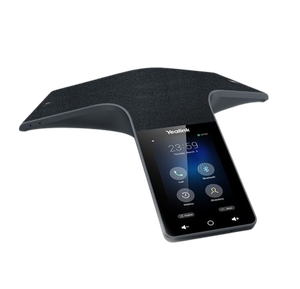
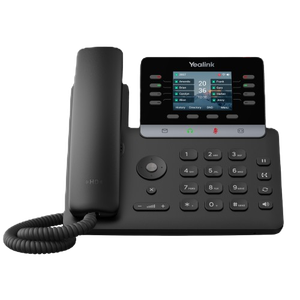
Yealink hardware we work on
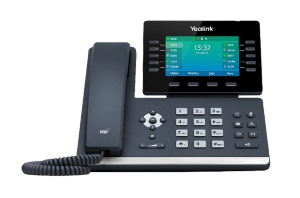
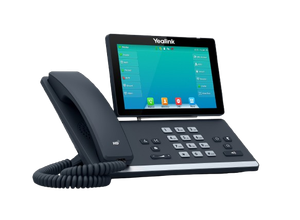
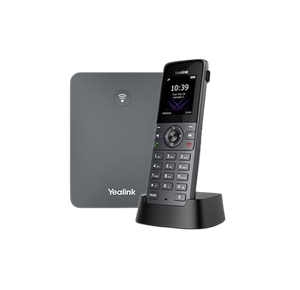
Desk phones, cordless handsets and conference units. We are not a Yealink partner or reseller, we just work on these every week.
Something is wrong with a Yealink phone and you need it working. Start below. Most of these take a couple of minutes and you will not need anybody's permission to try them.
Are you trying to reach Yealink?
A lot of people who land here are. It is worth saying plainly: we are not Yealink, and we are not one of their partners, resellers or authorised agents. Yealink makes the hardware overseas and does not run a support line for Australian businesses.
VoIP System is an independent Australian phone systems company. We install and service this equipment, so we know these handsets well, and the help on this page is free whether you are a customer or not.
What is the phone doing?
Find the closest match. Each one links to the full walkthrough.
- Blank screen, or nothing at all. Go to the power and network check below.
- The screen works but you cannot make calls. Go to the registration section.
- A cordless handset says it is searching, or shows no bars. Go to the base station section.
- You cannot get the phone onto wifi. Read connect a Yealink phone to wifi.
- You cannot transfer a call. Read transfer a call on a Yealink phone.
- A headset will not answer calls. Read connect a Yealink WH62 headset.
- The phone is new and still in the box. Read set up a new Yealink phone, start to finish.
The phone has no power, or the screen is blank
Yealink desk phones are usually powered down the network cable rather than from a plug, so a dead phone is often a dead network port.
- Check the network cable is pushed fully into the socket marked Internet or LAN on the back of the phone. There are two sockets and they look identical. The other one, marked PC, feeds the computer on the desk and will not power the phone.
- Check the other end of that cable is in the wall port or switch it normally sits in. If somebody has moved a desk recently, this is usually why.
- If the phone has a separate power adapter, check it is in the wall and the wall switch is on.
- Unplug the network cable, count to ten, and plug it back in. The phone takes about a minute to come back up. Let it finish before you decide it has not worked.
If the phone still shows nothing, try its cable in a colleague's working phone. If their phone dies too, the problem is the cable or the port, not the handset, and that is worth knowing before anybody orders a replacement.
The screen works but you cannot make or take calls
If the phone has started up but calls fail, it has an address on the network but has not signed in to the phone system. The screen usually shows something like no service, or the line at the top of the display sits greyed out or marked with a cross.
- Restart the phone. Unplug the network cable, wait ten seconds, plug it back in, and wait for it to finish starting.
- Check whether other phones in the office have the same problem. If every phone is down, the phone system or the internet connection is the cause, and there is nothing to fix on your desk.
- If it is only your phone, check the network cable as above.
If one phone is still not registering after a restart and everything else is working, stop there. The next step involves the phone system's settings rather than the handset, and it needs whoever manages your phones. There is wording below you can send them.
A cordless handset says it is searching for its base
This one is common and it is usually fixable in a minute. The handset has lost its pairing with the base station, or it is simply too far away.
- Walk back towards the base station, the small box plugged into the network, and see whether the bars come back. Yealink DECT handsets have good range indoors, but concrete, lift shafts and metal shelving cut it down sharply.
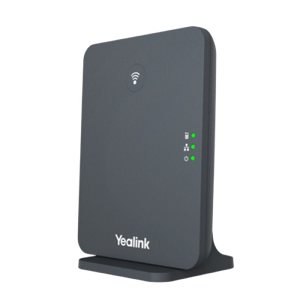
- Check the base station has power and that its lights are on.
- Take the battery out of the handset, wait ten seconds, put it back in and let it start up.
If it still cannot find the base, the handset needs registering to it again. That is a specific sequence on the base and the handset, and it differs between the W60B, W70B and W90B. Read connect a Yealink cordless phone to a base station for the one that matches your base.
Setting up a phone for the first time
If the handset is new, do not troubleshoot it. Nothing is broken yet. Read set up a new Yealink phone, start to finish, which covers the whole thing from opening the box to making a test call.
The most common problem with a new phone is not the phone. It is that nobody has created the extension for it on the phone system yet, so the handset does everything right and still has nothing to sign in to.
When the problem keeps coming back
One phone that drops out once is a phone. Every phone dropping out on Monday mornings, or calls breaking up whenever the office is busy, is the system or the connection underneath it.
Things that are worth writing down when it happens, because they make the cause much easier to find:
- What time it happened, and whether anyone else noticed it at the same time.
- Whether it affected one phone, one part of the office, or everybody.
- Whether the call was internal, to a mobile, or to a landline.
- Whether the audio dropped one way or both ways.
Three or four of those notes will tell somebody more than a week of guessing.
Who to hand this to
If the fixes above have not worked, the next step is not usually something you can do from your desk, and it should not be. Changing a phone system's settings needs whoever looks after it.
That might be your office manager, your IT provider, or whoever arranged the phones originally. If you are not sure who that is, the person who pays the phone bill will know.
Here is something you can forward to them:
Our Yealink phones are doing the following: [what is happening, when it started, how many phones]. I have restarted the handset and checked the cables. VoIP System supports these phones independently here in Australia and can look at it with you: voip-system.com.au
We are happy to talk to them directly. That is generally faster than passing messages back and forth, and it means the person who can approve a fix is in the conversation from the start.
Call 1300 865 879, or send us the details and we will come back to you.
Do you have to be a customer?
No. The help on this page is free and there is nothing to fill in to read it.
If it turns out the phone is fine and the system behind it is the problem, we can look at that too, and that is a conversation rather than an obligation.
Common questions
- Is this Yealink?
- No. Yealink makes the hardware. VoIP System is an independent Australian company that installs and supports it. We are not a Yealink partner, reseller or authorised agent.
- Can you help if we bought the phones somewhere else?
- Yes. Most people we help on these pages did.
- Do Yealink phones work during a power cut?
- The handset itself will not, because it draws power from your network. Calls to your business number can be sent to a mobile automatically while the power is out, but that has to be set up in advance. It is worth asking whoever manages your phones whether you have it.
- Our phones are old. Is it worth fixing them?
- Usually yes. Yealink desk phones last a long time and most faults are a cable, a setting or a registration rather than a failed handset. Nobody should be selling you new phones before somebody has looked at what you have.
- Which Yealink phones do you work on?
- The T4 and T5 desk phones, the W series cordless handsets and bases, the CP conference phones, and the WH headsets.