
Connect a Yealink phone to wifi
Get a Yealink desk phone onto wifi, and work out first whether yours can do it without a dongle. Five minutes if the phone supports it.
Which of these can join a wifi network
The W in a model number is the giveaway. These three have wifi built in, which is what makes the steps below possible without a dongle.
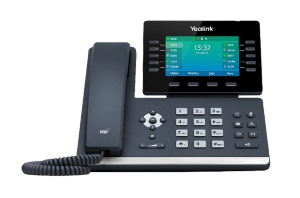
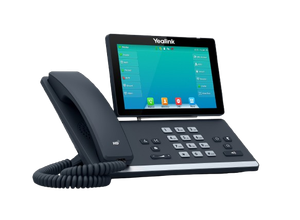
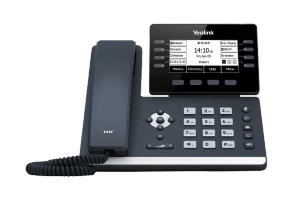
- Check your phone can do wifi. See the section below. If it needs a dongle, plug the dongle into the phone's USB port before you start.
- Power on the phone and let it finish starting.
- Open the menu. Press the Menu key.
- Go to the wifi setting. Use the navigation keys to go to Settings, then Basic Settings, and find Wi-Fi.
- Turn wifi on. Select it to enable it. The phone will scan for networks, which takes a few moments.
- Choose your network from the list and press Connect.
- Enter the password on the dial pad if the network is secured, then press OK.
- Check it worked. A wifi icon appears on the display. Make a test call to be sure.
First, does your phone actually support wifi?
This is the step the phone will not tell you, and it is why most people get stuck.
Phones with wifi built in. If the model number ends in W, it has wifi built in and needs nothing extra. The T54W, T53W and T57W are the common ones. That W is the whole tell.
Phones that need a dongle. Most other Yealink desk phones can do wifi, but only with a Yealink USB wifi dongle plugged in. That covers a lot of very common models, including the T46S, T48S, T42S, T41S, T46U, T48U, T43U, T42U, T27G, T29G, T46G and T48G.
Without the dongle plugged in, there is no wifi menu to find. Not hidden, not disabled. Not there. If you have gone to Basic Settings and there is no Wi-Fi option, this is almost certainly why, and no amount of looking will produce one.
Which dongle. There are two, and the difference matters:
- WF40 connects to 2.4GHz networks only.
- WF50 connects to 2.4GHz and 5GHz.
If your office wifi is 5GHz only, a WF40 will never see it. The phone will scan, find nothing, and give you no clue why. That is worth checking before you decide the dongle is faulty.
Should the phone be on wifi at all?
Worth asking, because the honest answer is often no.
A desk phone on a network cable gets a steady connection and, on most office setups, its power down the same cable. On wifi it needs a separate power adapter and it competes with every laptop and phone in the building. Voice is unforgiving about interruptions in a way that email and web browsing are not, so a wifi connection that feels perfectly fine on a laptop can still produce calls that break up.
Use wifi when you have to, which usually means there is no network port where the phone needs to sit, or running a cable is not practical. If there is a port within reach, use it. This is the one piece of advice on this page that will save you a support call later.
If it will not connect
Check the password. Wifi passwords are case sensitive and entering one on a dial pad is unpleasant. Type it somewhere you can read it back first.
Check the band. If you have a WF40 and your network is 5GHz only, that is the answer. See above.
Check the signal. Stand where the phone sits and look at how many bars your mobile gets on the same network. If it is marginal for a phone in your hand, it will be worse for a desk phone that cannot move.
Restart the phone. Unplug it, ten seconds, plug it back in. Give it a full minute.
Check the firmware. If everything above is right and it still will not hold a connection, out of date firmware is a genuine cause. That is a job for whoever manages your phones rather than something to attempt from the handset.
Common questions
- My phone has no Wi-Fi option in the menu. Is it broken?
- Almost certainly not. It probably needs a dongle. See the section above.
- Can I use any USB wifi dongle?
- No. It needs to be the Yealink one for your model. A generic USB wifi adapter will not be recognised.
- Will calls sound worse on wifi?
- They can. Not always, but wifi introduces variability that voice notices. If calls break up only for people on wifi phones, that is your cause.
- The phone connects but drops out during calls.
- That is usually signal or network congestion rather than the phone. Note the time of day it happens, because if it clusters around when the office is busiest, that tells you what it is.
- Can it be on wifi and a cable at the same time?
- There is no benefit in trying. Pick one, and pick the cable if you have the option.