
Set up a new Yealink phone, start to finish
Get a new Yealink desk phone out of the box, cabled, powered and registered, and know what to do when the screen says No Service. Ten minutes, and you should not need to configure anything.
The phones this guide covers
Corded Yealink desk phones. The steps are the same across the range, and the only thing that changes is the model name on the screen while it starts.
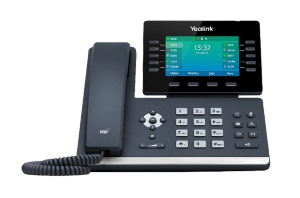
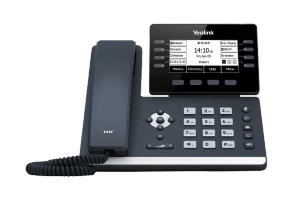
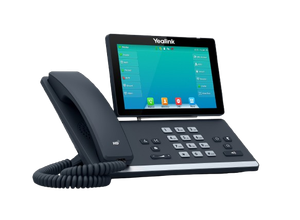
- Check what came in the box. A handset, a stand, a handset cord, a network cable, and sometimes a power adapter. If there is no power adapter, that is normal and step five explains why.
- Clip the stand on and plug the curly cord in. The cord goes into the socket marked with a handset symbol, not the one marked with a headset symbol. Getting these two the wrong way round is the single most common reason a new phone has no sound.
- Find the network port at the desk. This is the wall socket the computer plugs into. If there is only one and the computer is using it, keep reading, because the phone can share it.
- Run the network cable from the wall to the port marked Internet or LAN on the back of the phone. There are two identical looking sockets and only one of them is right. See the section below.
- Power it on. If your office network supplies power over the cable, the phone starts as soon as the cable goes in and you need nothing else. If it stays dark, use the power adapter.
- Wait, and do not touch it. A new phone takes a minute or two to start, find the network, and collect its settings. The screen will change several times. That is it working, not it failing.
- Read the screen. When it is ready it shows a name or an extension number rather than an error. If it says No Service, or asks for a username, go to the section on that below.
- Test it in both directions. Ring the phone from a mobile, then ring the mobile from the phone. Check you can hear and be heard on both.
Before you start, and this is the part worth two minutes
You almost certainly do not need to configure anything. A business phone that arrives from a provider is set up to collect its own settings the first time it starts, so the job is usually cabling and patience rather than typing.
What you need at the desk is a network port, the same kind of socket the computer plugs into, the phone with its stand and curly cord, and a power point within reach only if the phone turns out not to get power down the network cable. No password, no IP address, and nobody from IT standing over you.
The two sockets on the back, and the one everybody gets wrong
Turn the phone over and there are two identical network sockets side by side. One is marked Internet, or sometimes LAN. The other is marked PC.
The cable from the wall goes into Internet. Every time. The PC socket is an outlet rather than an inlet, and it exists so the computer can plug into the back of the phone and share the one wall port. That is genuinely useful when there is only one socket at the desk, and it is also the reason a phone that will not start is so often plugged into the wrong hole. Nothing is damaged if you have done it, so move the cable across and start the phone again.
Power, and why there might not be an adapter in the box
Most office phone systems send power down the same network cable that carries the calls, so the phone lights up the moment you plug the cable in and that is why no adapter was supplied. If the screen stays completely dark for more than a few seconds, yours does not do that and you need one. Adapters are commonly sold separately, so ask whoever supplied the phone rather than buying at random, because the wrong voltage will not run it.
What the phone is doing while you wait
The pause after you plug it in is not the phone thinking. It is the phone asking your network for an address, then asking your phone system for its settings, then loading them. That last part is called provisioning and it is why you are not typing anything in.
When it works, the screen ends up showing an extension number, a person’s name, or your company name. That is the phone telling you it has found the system and been accepted by it.
If the screen says No Service, or nothing at all
Work through these in order. Most new phones are fixed inside the first three.
- The screen is dark. Check the cable is in the Internet socket rather than PC, then try the power adapter. A completely dark screen is a power problem, not a phone system problem.
- It says No Service, or Network Unavailable. The phone is powered but has not reached the network. Try the wall port with a laptop to prove the port itself is live, and try a different network cable. Cables fail more often than phones do.
- It starts, but shows an error or asks you to register. The phone is on the network and the network is fine. What it has not got is permission to join your phone system, and that is not something you can solve at the desk. This is the point to hand it up.
- It works but you cannot hear anything. Check the curly cord is in the handset socket and not the headset socket. Worth checking twice, because the sockets sit next to each other and the symbols are small.
Restarting is fair game at any point in that list. Unplug it, wait ten seconds, plug it back in, and let it start properly before you decide it has failed.
When to stop and ask somebody
If the phone is on and the screen says it cannot register, the missing piece is on the phone system rather than in the room. Somebody has to create or release the extension, and that is deliberate: a phone that could join a company phone system just by being plugged in would be a problem, not a feature.
Have these ready and whoever fixes it will do so in minutes rather than an afternoon:
- What the screen says, word for word, and a photo of it if you can
- The model name printed on the front or the underside of the phone
- The MAC address from the label underneath, which is the number that identifies this exact handset
- Whether other phones in the office are working right now
If yours is not a corded desk phone
Three near neighbours, each a different job and each with its own guide. A cordless handset and a base station register to each other before either touches your phone system, which is connect a Yealink cordless phone to a base station.
No network port where the phone has to sit, so it needs to join the wifi instead. That is connect a Yealink phone to wifi, and read the first section of it before you buy anything, because not every model can.
A wireless headset to go with it. That is connect a Yealink WH62 headset.
Once it is working, the thing everybody needs on day one is transferring a call.
Who we are, and what we are not
We are VoIP System. We install and support Yealink handsets for Australian businesses and we do it every week, which is why this page exists. We are not Yealink, and we are not one of their partners, resellers or authorised agents. A lot of people who reach this page were trying to ring the manufacturer, and you are welcome to the answer above either way.
More Yealink troubleshooting is on our Yealink support page, and the range itself is on the Yealink phones page.
If the phone still will not register and nobody in your office owns the phone system, call us on 1300 865 879 or send us the details. We will tell you what is wrong even if you did not buy it from us.
Common questions
- How do I set up a Yealink phone?
- Clip on the stand, plug the curly cord into the handset socket, run the network cable from the wall into the socket marked Internet, and let it start. You usually configure nothing: a business handset supplied with a phone system collects its own settings the first time it runs, so after a minute or two the screen should show an extension number or a name rather than an error.
- How do I connect my Yealink phone to my network?
- Run a network cable from the wall port into the socket on the back marked Internet, sometimes marked LAN, and the phone finds the network itself. There is no address to type in. The identical socket next to it marked PC is an outlet for the computer rather than an inlet, and using it by mistake is the most common reason a new phone never comes up. Nothing is damaged, so move the cable across and start it again.
- Why was there no power adapter in the box?
- Because most office networks supply power down the same cable that carries the calls, so the phone needs nothing else. If the screen stays dark when you plug the network cable in, yours does not, and you need an adapter. Ask whoever supplied the phone rather than buying one at random, because the wrong voltage will not run it.
- Why is my Yealink phone not connecting?
- It has power but has not reached the network. Check the cable is in the Internet socket rather than PC, try a different cable, and prove the wall port is live by plugging a laptop into it. If the phone starts but says it cannot register, the network is fine and the phone system has not been told to expect this handset, which is a job for whoever runs it.
- How long should a new Yealink phone take to start?
- A minute or two the first time. The screen changing several times is the phone finding the network and loading its settings, not a fault. Leave it alone until it settles rather than unplugging it partway through, because interrupting that first start is the most common way to turn a working phone into one that needs a second attempt.
- How do I connect my Yealink phone to my computer?
- Yes, and that is what the socket marked PC is for. The wall port goes to the phone and the computer goes to the phone, so one socket serves both. It is worth knowing that unplugging or restarting the phone will interrupt the computer as well, which surprises people the first time.