
Connect a Yealink phone to a 3CX system
Add a Yealink desk phone to a 3CX system, which provisions the phone rather than having you type settings into it. About fifteen minutes. You need the 3CX administrator login.
The handsets this covers
The desk phone that is on a lot of Australian desks already, and the two replacing it. 3CX puts both generations in the same tier, so the steps below are the same for all three.
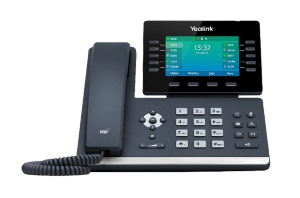
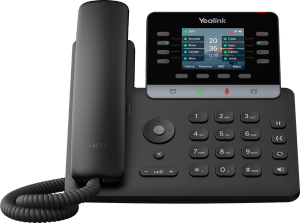
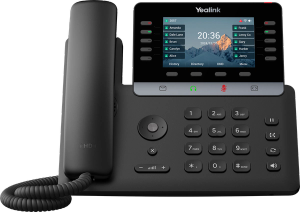
- Check the phone is one 3CX will set up for you. Yealink desk phones are in its top tier, both the older T5 range and the current T7 and T8 range, and the section below covers how to tell. If yours is an older model the answer is different and there is a section for that too.
- Get the phone's MAC address. It is printed on the label underneath the phone, and you can also read it on the screen under Menu, then Status. Write it down carefully, because one wrong character is the most common reason none of this works.
- Work out whether your 3CX runs in the cloud or on a server in your building. Everything from step five onwards depends on the answer, and it is the question people skip.
- Open the 3CX admin console and go to the user this phone belongs to. Each phone is attached to a person rather than configured on its own.
- On that user, open the IP phone tab and add a phone. Choose the model from the list, then type in the MAC address.
- Choose how the phone reaches the system. If 3CX is on a server in your building you can connect it straight across the local network. If 3CX is in the cloud, the phone has to go through a router phone or an SBC on site, and the section below explains what that means before you get stuck on it.
- Save it, then put the phone on the network. If it is already plugged in, restart it.
- Leave it alone and watch. It fetches its settings, restarts itself a second time, and then shows the extension on screen. That second restart is normal and people often interrupt it.
- Test it properly. A call in, a call out, and check the extension shows as registered in the console rather than only checking the phone.
This is not a settings job, and that is the thing to understand first
If you have set a phone up on an older system, you probably remember typing an address, a username and a password into the phone through its web page. That is not how this works, and expecting it to be is why people go looking for fields that are not there.
With 3CX the phone is told where to collect its own settings from, and it collects them. You do the work in the console, the phone does the rest, and you never open its web page at all in the normal case. So most of what follows is about getting the console right and getting the network right, rather than about the handset.
Before you start
You need an administrator login to the 3CX console, which is not the same thing as the login people use for calls every day. The everyday web client will not show you any of what follows. If your own extension is all you have, the person to find is whoever set the system up, and on a system nobody has owned for a while that search is the real job rather than this one.
You need the phone in your hand, or at least its MAC address. And you need to know whether the system runs in the cloud or on a server in your building, because that single fact decides the shape of the whole job.
If 3CX is in the cloud, something has to sit on site first
This is the one that catches people out, it is structural rather than a setting, and almost nothing you will read about this job leads with it. When the system is hosted, the phones cannot simply talk to it across the internet on their own. Something on your network has to sit between them and carry the traffic. That is either a small piece of software you install on a machine in the office, or a desk phone that does the job as well as being a phone. 3CX calls the second one a router phone, and several of the Yealink desk phones can act as one.
The reason it matters here is what it looks like when it is missing. The phone works perfectly. It finds the system, it downloads its settings, it restarts, and then it will not register, and everything you check on the handset looks correct because the handset is fine. People lose an afternoon to that before anybody says the word router phone.
So decide this before you add the phone, not after. If the system is on a server in your building, none of it applies and the phone can go straight onto the network.
Which Yealink phones 3CX will set up for you
This is the question people actually ask first, and it has three answers rather than yes or no.
- The current desk phone ranges are in the top tier and are the straightforward case. That covers the older T5 phones, including the T54W that is on a great many Australian desks, and the T7 and T8 phones that replaced them.
- A middle group works but is older, gets less attention, and in some cases is no longer sold. Fine to use if you already own them, not what to buy.
- The oldest phones cannot be set up automatically at all. They still work, but somebody has to enter the details into the phone by hand, and there is a section on that below.
That list moves, so check the current one rather than ours or anybody else's. 3CX publishes it and dates it. If you are choosing a handset rather than connecting one you already own, our Yealink phones page covers the range.
If the phone never picks up its settings
In the order these are actually the answer.
- The MAC address is wrong. Retype it rather than reading it back, because the characters that get confused are the ones that look alike. This is the first thing to check every time.
- The phone was set up a while ago and nothing has been plugged in since. The instruction the phone is waiting for does not sit there for ever. If it has been sitting in a cupboard, redo the console step and then plug it in.
- The phone is already pointed somewhere else. A handset can be enrolled to fetch its settings from whoever sold it, which is not a fault and is not something you can fix at the phone. It is the most expensive surprise in this job and it is covered properly in Yealink phone provisioning and PBX configuration.
- It is one of the older models that has to be done by hand. In that case the console will give you the extension number, an authentication ID, a password and the address of the system, and those go into the phone's own web page.
If it collects its settings but will not register
This is a different fault from the one above, because the phone is configured and simply is not connected. On a hosted system it is the router phone or SBC question above until proven otherwise, and checking that first will save you the rest.
If everybody is affected rather than one phone, or calls connect and nobody can hear anybody, that is not this page. Both have a signature worth recognising and they are covered on our 3CX support page.
If you are doing more than a handful
Everything above is one phone for one person, which is the right way to do a few. Setting up a deskful is a different job with a different shape, and doing fifteen by hand produces fifteen slightly different phones. That is covered in Yealink phone provisioning and PBX configuration, including how to keep the office wide settings and the per handset settings apart.
Cordless handsets are a different procedure
A cordless set is added as a base station rather than as a desk phone, in a different part of the console, and then the handsets are attached to it. If that is what you have, start with our DECT and cordless phones page for how the pieces fit together.
Who we are, and what we are not
We are VoIP System. We install and support 3CX systems and Yealink phones for Australian businesses, which is where everything above comes from. We are not 3CX and we are not Yealink, and we are not one of their partners, resellers or authorised agents. A lot of people who reach a page like this were trying to reach one of the two manufacturers, and the answer above is yours either way.
If you are still weighing 3CX up rather than connecting a phone to one, we have written about where it fits and where it does not. If the phones are down now, call 1300 865 879 or tell us what the screen says.
Common questions
- Which Yealink phones work with 3CX?
- The desk phone ranges a business is likely to be running are in 3CX's top tier, and that covers both the older T5 phones and the T7 and T8 phones that have replaced them. Older handsets fall into a middle group that works but gets less attention, and the oldest have to be configured by hand instead. 3CX publishes and dates its own list, so check that rather than any list on a supplier site, this one included.
- How do I add a phone to my 3CX system?
- In the console you open the user the phone belongs to, add a phone on their IP phone tab, pick the model and type in the MAC address, then choose whether it connects across the local network or through a router phone or SBC. Save that, plug the phone in or restart it, and it collects its settings and registers itself. The steps above go through it in order.
- What is a router phone, and do I need one?
- It is an ordinary desk phone that also carries the other phones' traffic back to a hosted system, so you get the function without a separate box. You need one, or a piece of software doing the same job, whenever 3CX is in the cloud and the phones are in your office. If the system runs on a server in your building you do not need one at all. Working this out before you start saves the most common wasted afternoon on this job.
- Do I have to type SIP settings into the phone by hand?
- For a current handset, no, and looking for those fields is a sign you are on the wrong path. The phone is told where to collect its settings and it collects them. Only the oldest models have to be entered by hand, and for those the console gives you the extension number, an authentication ID, a password and the address of the system to type in.
- The phone downloaded its settings but will not register. What now?
- If the system is hosted, assume the router phone or SBC question first, because that is what this fault looks like when nothing on site is carrying the traffic. The phone will look completely correct while it does it. If the system is on a server in your building, check the MAC address matches the phone you are holding rather than a different one on the desk.
- Which firmware should the phone be running?
- On 3CX, let the system decide. It keeps its own tested versions and updates the phones from the console, and that version is deliberately not always the newest one the manufacturer has released. Chasing a newer release than the one your phone system expects is how a working fleet stops matching itself.