
Transfer a call on a Yealink phone
Transfer a call on a Yealink desk phone using the Transfer key, either announcing the call first or putting it straight through. Under a minute once you have done it once.
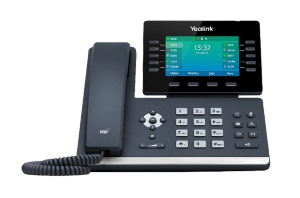
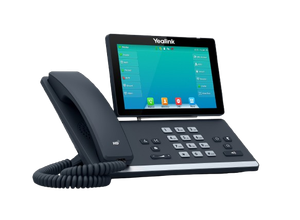
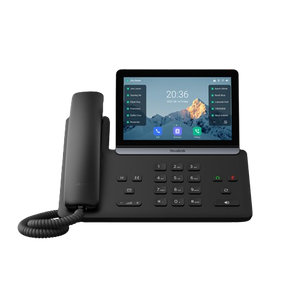
Where the Transfer key sits
On a corded Yealink it is a soft key on the screen, on the touchscreen models it is on the display itself. The steps below cover both.
- Stay on the call. Do not put the caller on hold first. The transfer does that for you, and holding first is the most common reason people end up back where they started.
- Press the Transfer key. On most Yealink desk phones it is labelled TRAN. On some models it is a soft key along the bottom of the screen reading Transfer. The caller is put on hold and hears your hold music.
- Dial the extension you are transferring to.
- Decide how to finish it. This is the fork, and it is the whole thing: To put them straight through, press Transfer again immediately. The call leaves your phone and rings the other extension. You are out of it. To announce the call first, wait for the person to answer, tell them who is holding, then press Transfer to connect the two.
- If it does not go to plan, press Cancel. The soft key is usually Cancel or End Call. You go back to the caller, who has been on hold the whole time and can still be transferred somewhere else.
Blind, attended, and which one to use
The two endings in step 4 have names, and they get used in every manual and by everybody on a support call.
- Blind transfer, sometimes called unattended. You send the call and hang up without speaking to the person receiving it. Fast, and right when you know they are there and expecting it.
- Attended transfer, sometimes called consultative or warm. You speak to them first. Slower, and right for almost everything else, because you find out they are on another call before the customer does.
There is a third state worth knowing about. If you press Transfer while the other extension is still ringing, before anybody picks up, that is a semi attended transfer. Most systems treat it as a blind transfer and let it keep ringing. It is also the most common way people transfer a caller into an unanswered phone by accident.
Transferring with a BLF key
If your phone has a side panel or a row of keys with your colleagues' names next to little lights, those are BLF keys, for Busy Lamp Field. The light tells you whether that person is free, ringing or on a call.
To transfer using one: press Transfer, then press the BLF key for that person instead of dialling their extension. Finish it the same way, straight through or after announcing.
What the BLF key does on its own, without pressing Transfer first, depends on how the phone was set up. Yealink has a setting for it, and it can be configured to start a new call, do a blind transfer, or do an attended transfer. So the same key press can behave differently on two phones in the same office. If you are not sure which yours does, press Transfer first and the behaviour is predictable.
Check the light before you transfer. A BLF key showing the person is already on a call is telling you the transfer will not be answered.
Transferring a caller to voicemail
Usually possible and it depends on your phone system rather than the handset. On most systems you press Transfer, then dial a prefix followed by the extension, then press Transfer again.
The prefix is set by your phone system, not by Yealink, so it is different from site to site. If you do not know yours, ask whoever looks after your system, or ask us and we will tell you if it is a system we know.
On a cordless Yealink handset
The W series cordless handsets transfer too, and the keys are different because there is no TRAN key.
During a call, press the Options or More soft key, choose Transfer, dial the extension, then choose Transfer again to send it through or wait and announce it first.
The logic is identical. Only the buttons move. There is more on the cordless range in DECT and cordless.
If the transfer does not work
Almost always one of these, in roughly this order.
- You pressed Hold before Transfer. Press Cancel, get back to the caller, and start again with Transfer.
- The extension does not exist, or you have the wrong number. The call comes back to you or you hear a fast busy tone.
- The BLF key is configured to start a new call rather than transfer. Press Transfer first, then the key.
- The other extension is on Do Not Disturb, so a blind transfer disappears into voicemail. The BLF light usually shows this before you commit.
- Transfer is restricted on your phone system. Some systems block transfers to outside numbers, which is a deliberate setting rather than a fault, and it is worth knowing about before you try to transfer a caller to somebody's mobile.
- The soft keys are not where this guide says. Labels move between models and firmware versions. The sequence does not.
If none of that fixes it, the problem is in the phone system rather than the handset, and that is worth someone looking at. Our Yealink support is free and ungated whether you bought the phones from us or not.
Common questions
- How do I transfer a call on a Yealink phone?
- Press the Transfer key, usually labelled TRAN, dial the extension, then press Transfer again to put the caller straight through, or wait for the person to answer and announce the call before pressing Transfer.
- What is the difference between a blind transfer and an attended transfer?
- A blind transfer sends the call without you speaking to the person receiving it. An attended transfer lets you speak to them first, so you find out they are unavailable before the customer does. Attended is the safer default.
- How do I get back to the caller if the transfer fails?
- Press the Cancel or End Call soft key. The caller has been on hold the whole time and comes back to you, and you can transfer them somewhere else.
- Can I transfer a call using the BLF keys?
- Yes. Press Transfer, then press the BLF key for that person instead of dialling their extension. Pressing the BLF key on its own can behave differently depending on how the phone was configured, so pressing Transfer first is the predictable route.
- Why does my BLF key start a new call instead of transferring?
- Because Yealink phones have a setting that controls what a BLF key does during a call, and yours is set to start a new call. It can be changed, and pressing Transfer first works either way.
- Can I transfer a caller straight to voicemail?
- On most systems yes, by dialling a prefix before the extension. The prefix comes from your phone system rather than the handset, so it differs between sites.
- How do I transfer on a Yealink cordless handset?
- Press Options or More during the call, choose Transfer, dial the extension, then choose Transfer again or announce the call first. Same logic as a desk phone with different buttons.
- Can I transfer a call to a mobile?
- Usually, by dialling the full number instead of an extension. Some phone systems deliberately block transfers to outside numbers, so if it fails that is likely to be why.