
Connect a Yealink T54W desk phone to a Yeastar PBX
Create an extension on a Yeastar PBX and register a Yealink T54W desk phone to it. About fifteen minutes. You need the PBX administrator login.
The handset in this guide
The Yealink T54W. The same steps register any Yealink desk phone to a Yeastar PBX, only the model name on the screen changes.
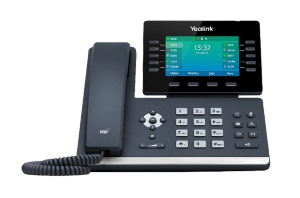
- Check both are on the network. The T54W powered on and connected, the Yeastar PBX set up and reachable on the same network.
- Log in to the Yeastar PBX. Open a browser, enter the PBX's IP address, and sign in with administrator credentials.
- Create the extension. Go to Extensions, then Add. Fill in the extension number, the name and the password. Save it.
- Find the phone's IP address. On the T54W, press Menu, then Status, then Network.
- Log in to the phone. Enter that IP address into a browser and sign in with the phone's admin credentials. If they are still the factory defaults, change them once you are finished.
- Register the phone. Go to Account, then Register, and set: Line Active: Enabled Label: whatever should show on the display, for example Reception Display Name: the name you want calls to show Register Name: the extension number you created User Name: the extension number Password: the extension password you set on the PBX SIP Server: the IP address of the Yeastar PBX
- Save, and the T54W should show as registered.
- Check the status. In the phone's web interface, look at Status, then Account Status.
- Test it. Make a call in and a call out.
Before you start
You need administrator access to the PBX. If you do not have it, stop here, because everything below assumes it. Whoever manages the phone system has it, and if nobody does, that is the actual problem to solve first.
Write down the extension number and password as you create them. Half the failed registrations on this procedure are a password typed differently in two places twenty minutes apart.
Decide whether you are doing this by hand at all. For one phone, the steps above are the quickest route. For a dozen phones, provisioning them centrally is faster and produces a system somebody can maintain, and doing twelve by hand produces twelve slightly different configurations. That is a different job and it is worth knowing it exists before you start the eleventh handset.
If the phone will not register
Work through these in order. They are ordered by how often each one is the answer.
- Check the SIP server address. It is the PBX's IP address, and it is the field people most often get wrong. If the PBX has moved to a different address since the last phone was set up, every new registration will fail while the existing phones carry on working, because they were configured when the old address was right.
- Check the password matches. Not the administrator password, the extension password. Retype it in both places rather than trusting that it matches.
- Check register name and user name. Both are the extension number. Putting the display name in either is a common slip.
- Check they are on the same network. If the phone is on a different subnet or a separate VLAN from the PBX, registration will fail even with every field correct. This is the one that wastes the most time, because nothing on screen suggests it.
- Check the firewall. A firewall between the phone and the PBX will block SIP traffic silently.
- Restart the phone. Last, not first, because on this procedure it rarely helps and it costs a minute each time.
It registers but calls do not work properly
Calls connect and nobody can hear anybody. One way or no audio is a network path problem rather than a registration problem. The phone is signed in, so the SIP part is fine and it is the audio path that is not getting through. Firewall and network routing between the phone and the PBX is where to look.
Incoming calls do not reach the phone. Registration is only half of it. The PBX also has to be told to send calls to that extension, through an inbound route, a ring group or whatever the office uses. A newly created extension can be perfectly registered and simply not be in anything's list.
The display name is wrong on outgoing calls. What the far end sees is usually set by the trunk rather than by the handset, so changing the display name on the phone will not fix it.
Common questions
- Does this work for other Yealink models?
- Yes. The T54W is what the page names because it is the common one, but the registration fields are the same across the Yealink desk phone range. The menu path to find the phone's IP address is the same too.
- Does it work with a hosted Yeastar rather than one in our office?
- Yes, and the fields are the same. The SIP server is the address of the hosted system instead of a local IP. The network checks matter more, not less, because the traffic is leaving the building.
- Do I need to do this for every phone?
- By hand, yes. For more than a few phones, provisioning is the better answer.
- Should I leave the phone's admin password as it came?
- No. A phone with factory credentials is worth changing, and it takes a moment while you are already logged in.
- The extension shows registered on the PBX but the phone says no service.
- Look at the time on both. A large clock difference between the phone and the PBX causes exactly this, and it is easy to miss because everything else looks correct.