
Forward calls and use do not disturb on a Yealink phone
How to forward calls on a Yealink phone, what do not disturb does instead, and how to turn either off when a phone has gone quiet and nobody knows why.
Where these controls sit
On most of the range forwarding and do not disturb are a soft key and a menu item. On the touchscreen models they are on the display instead. The steps below cover both.
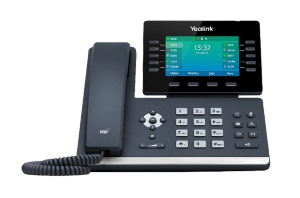
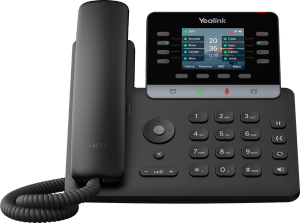
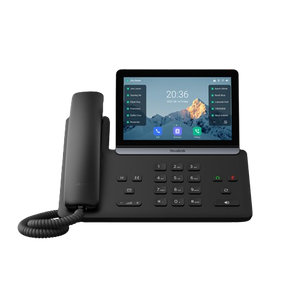
- Decide where you want the forwarding to live before you touch anything. It can be set on the handset itself, or on your phone system. They behave differently when something goes wrong, and the section below is one paragraph on which to choose.
- To set it on the handset, press Menu, then Features, then Call Forward.
- Choose which kind you want. Always sends every call straight on. Busy sends calls on only while you are already talking. No Answer sends them on after it has rung for a while and nobody has picked up.
- Type in the number you want calls to go to, exactly as you would dial it, including the area code or the leading zero on a mobile.
- If you chose No Answer, set how long it rings first. Too short and nobody ever gets a chance to answer at the desk. Too long and the caller has given up before it forwards.
- Save it, and look at the top of the screen. A small symbol appears there when forwarding is on, and that symbol is how anybody works out later that it is on.
- Ring the extension from a mobile before you rely on it. This is the step people skip and it is the one that catches the wrong number typed in step four.
- To turn it off, go back to the same place and switch it off. Restarting the phone does not clear it, and neither does the end of the day.
Forwarding can live in two places, and the difference matters
You can set forwarding on the handset, in the menu below, or on your phone system, which is usually a web page you log into or a code you dial. Most people find the handset first because it is in front of them.
The difference only shows up when something goes wrong, and then it matters a great deal. Forwarding set on the handset is done by the handset, so it works only while that phone has power and is connected. If the office loses power, or the internet drops, the phone stops forwarding at the same moment. Forwarding set on the system carries on regardless, because the system is doing it somewhere else. So for a short predictable absence the handset is fine and quicker, and for anything you are relying on, especially anything meant to cover you when the office is closed, set it on the system.
Which of the three kinds you want
- Always. Every call goes straight on and the desk phone does not ring at all. This is the one for being away.
- Busy. Calls go on only while you are already on a call. Useful for one person who must not miss anything, and not usually what a whole office wants.
- No answer. It rings at the desk first, then goes on if nobody picks up. This is the one most small offices actually want, and the setting that decides whether it works is how long it rings first.
You can have more than one of these on at once, which is where confusion usually starts. Always beats the other two, so if calls are going straight out and you cannot see why, that is the first one to look at.
Do not disturb is not forwarding, and mixing them up is common
Do not disturb stops the phone ringing. It does not send the call anywhere you have chosen. What happens to the caller instead is decided by your phone system, and it is usually voicemail, or the next phone in the group, or an engaged tone.
It is a soft key or a menu item on the handset, and it is meant for the twenty minutes you cannot be interrupted. It is the wrong tool for going home, because it makes calls fail rather than land somewhere useful.
The symbol at the top of the screen
Both features put a small symbol on the display, and this is the fastest way to answer why a phone is behaving oddly. If it is not ringing and nobody knows why, look at the top of its screen before anything else. The symbols differ across the range so there is no point us guessing which one you have, but something appears, and it stays there until somebody turns the feature off.
It is on and nobody turned it on
This is the most common version of this problem in a real office, and it is almost never a fault. Somebody set it, and either they forgot or they have gone home.
- Somebody pressed the do not disturb key while cleaning the desk, and it is a single key press on most handsets
- Forwarding was set for a day off months ago and never taken back off
- It was set on the system by whoever manages it, so nothing you do on the handset will clear it
- A relief receptionist set it, and the person who normally sits there does not know it is there
That last case is the one worth a note by the phone rather than a support call. If the same phone keeps doing this, the answer is usually a person rather than a setting.
If forwarding is not working
In the order these are actually the answer.
- The number is wrong. Check it digit by digit, and check the leading zero on a mobile. This is most of them.
- It was set on the handset and the handset is not reachable. If the phone has lost power or its connection, handset forwarding is not happening, which is the point of the first section above.
- It is set in the other place. Handset forwarding and system forwarding do not know about each other, so check both before deciding it is broken.
- Always is on as well as the one you meant. Always wins, so the No Answer rule you carefully set never gets a chance to run.
- Your system charges or blocks the call. Forwarding an outside call back out is a call your system has to make and pay for, and some are set up not to. If everything on the phone looks right, that is worth asking about, and our Yealink support page covers what to have ready.
Codes, and why there is not one on this page
You will find pages telling you to dial a particular code to switch forwarding on. Those codes belong to your phone system rather than to the handset, and they differ between systems. Yealink says so itself in its own documentation. So a code that works for somebody else may do nothing on yours, or something else entirely. If you want the one for your system, whoever runs it can tell you in a sentence, and the menu on the handset works without it.
Who we are, and what we are not
We are VoIP System. We install and support Yealink phones for Australian businesses, and this is one of the most common things we get rung about. We are not Yealink, and we are not one of their partners, resellers or authorised agents. Everything above works whoever supplies your phone system.
If you were trying to move a call that is already ringing to somebody else, that is a different job and it is on our guide to transferring a call. If the phones are misbehaving now, call 1300 865 879 or tell us what the screen says.
Common questions
- How do I forward my Yealink phone to my mobile?
- On the handset, press Menu, then Features, then Call Forward, choose Always, and enter your mobile number with its leading zero. Then ring the extension from another phone to prove it. If this is to cover you outside hours rather than for an afternoon, set it on your phone system instead, because handset forwarding stops the moment the phone loses power or its connection.
- Why is call forwarding not working on my Yealink phone?
- Nearly always the number, so check it digit by digit first, including the leading zero. After that, check whether Always is switched on as well as the rule you meant, because Always wins and the other rule never runs. Then check whether it was set on your phone system rather than on the handset, because the two do not know about each other.
- What is the symbol at the top of my phone screen?
- If the phone is not ringing when it should, a symbol at the top of the display is usually telling you that forwarding or do not disturb is switched on. The exact symbol differs across the Yealink range, so we will not guess yours, but something appears and it stays there until the feature is turned off. It is the first place to look.
- How do I turn off do not disturb?
- The same way it went on, which is usually a soft key on the screen or an item in the features menu. Restarting the phone does not clear it and neither does the end of the day, which is why a phone can sit silent for a week. If you cannot find it on the handset, it may have been set on your phone system, and whoever manages that can clear it.
- What is the difference between do not disturb and call forwarding?
- Forwarding sends the call to a number you have chosen. Do not disturb just stops the phone ringing, and what happens to the caller is then up to your phone system, usually voicemail or the next phone in the group. Do not disturb is right for twenty minutes you cannot be interrupted. It is the wrong choice for going home, because it makes calls fail rather than land somewhere useful.
- Will forwarding still work if the power or internet goes out?
- Not if you set it on the handset, because the handset is the thing doing it. That is exactly the moment most people wanted it to work. Forwarding set on your phone system keeps going, because the system is somewhere else and is not affected by your office losing power. For anything you are genuinely relying on, set it there.